
Embroidery Screen
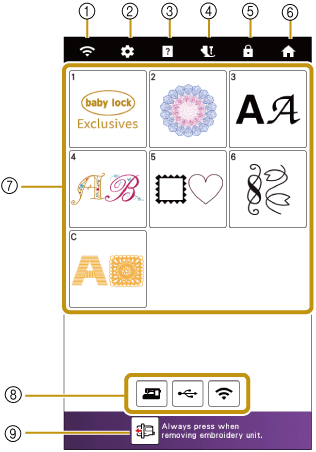
- Wireless LAN key
Shows the machine’s signal strength. Touch this key to specify the wireless settings. If there is a new update file, the key appears as
 .
. - Settings key
Customize the various machine settings.
- Machine help key
See explanations on how to use the machine. You can see the instructional videos by scanning the QR code displayed on the Help screen.
- Presser foot/Needle exchange key
Touch this key before changing the needle, the presser foot, etc. This key locks all key and button functions to prevent operation of the machine. Touch this key again to unlock all keys and buttons.
- Screen lock key
Lock the screen. When the screen is locked, you can still embroider, but cannot change any of the screen functions. Touch this key again to unlock the screen.
- Home screen key
Show the home page screen at any time.
- Embroidery pattern selection area
Select an embroidery pattern.
- Patterns saved in the machine’s memory, USB media, etc.
- Embroidery unit initialization key
Touch this key to position the embroidery unit for storage.