
Using the Wizard to Set Up the Wireless Network Connection
There are multiple ways to set up the wireless network connection. We recommend the method that uses the wizard on this machine.
In order to connect your machine to a wireless network, the security information (SSID and network key) for your home network will be required. The network key may also be called a password, security key or encryption key. First, find your security information and note it.
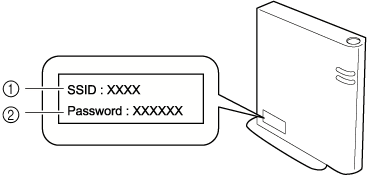
- SSID
- Network Key (Password)
- The wireless network connection cannot be set up if you do not have the security information.
- How to find the security information
- Check the manual provided with your home network.
- The default SSID may be the manufacturer's name or the model name.
- If you cannot find the security information, contact the manufacturer of the router, your network administrator or your Internet provider.
- Some SSIDs and network keys (passwords) are case (upper case and lower case) sensitive.
Please properly record your information.
Touch
 beside [Wireless LAN Setup Wizard].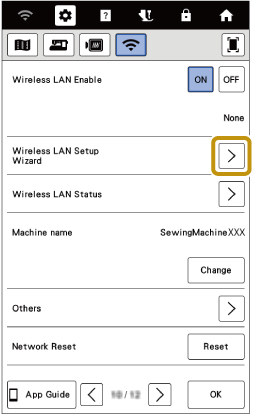
- A list of available SSIDs appears.
Touch
 beside the SSID that was noted.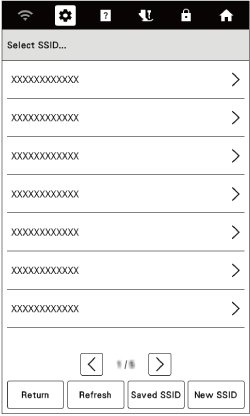
- The screen for entering the network key (password) appears.
- If the SSID that was noted does not appear in the list, touch [Refresh].
- If the desired network SSID is not displayed, specify it as described below.
- Select [New SSID].
- Enter the desired network SSID, and then touch [OK].
- Select the authentication method and encryption mode.
- If the machine had already been connected to the home network, touch [Saved SSID], and then select the saved SSID.
Enter the network key (password) that was noted, and then touch [OK].
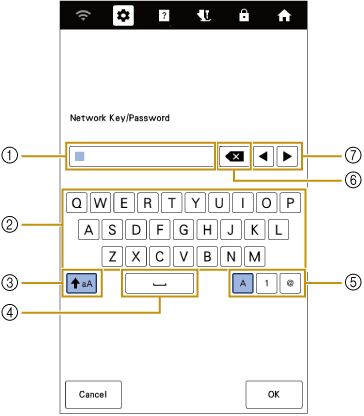
- Text input area
- Character keys
- Caps key
- Space key
- Letters/numbers/symbols key
- Backspace key (Deletes the character at the cursor's position.)
- Cursor keys (Move the cursor to the left or right.)
When the following message appears, touch [OK].
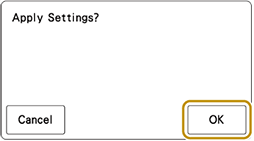
- When a connection is established, the following message appears.
Touch [OK].
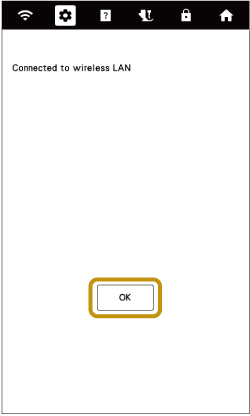
- When a connection is established, the following message appears.
Touch [OK] to exit the setup.
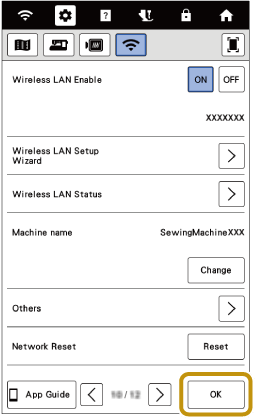
- The name beside [Machine name] is the name that will be used when registering the machine with embroidery editing software (Palette version 11 or later) or Design Database Transfer in order to transfer files.
- The name in the [Machine name] field will be used with the IQ Intuition Monitoring App.
- While connected, the signal strength is indicated by the icon in the upper-left corner of the display.
- Once a wireless network connection has been set up, a connection will be established each time the machine is turned on. However, [Wireless LAN Enable] in the network settings screen must remain set to [ON].
Using the [Others] Menu To Set Up the Wireless Network Connection
The [Others] menu contains the following items.
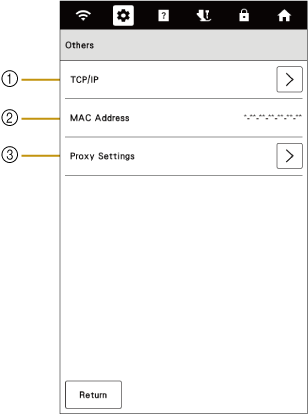
- TCP/IP settings can be manually entered.
- Shows the MAC address.
- Use when proxy settings are required.