
Update Procedure Using Wireless LAN Connection
If the machine is connected to a wireless network with a strong, reliable connection, update files can be downloaded directly to the machine using this network.
Using the Wizard to Set Up the Wireless Network Connection
The machine periodically checks if there is a new update file on the server. When there is a new update file, the wireless LAN key is displayed as  .
.

Display page 11 of the settings screen.
Touch [Check] to check whether there is a new update file on the server.
The machine starts to download the update file if there is a new update file on server.
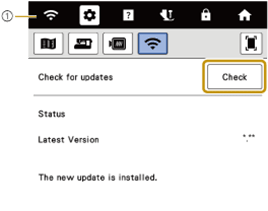
- The key appears as
 (being connected to the wireless LAN).
- The key appears as
If there is a new file, touch [Start] on the screen to start the download.
If there is no new file, the display does not change. Return to the original screen.
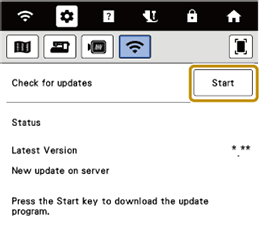
- Do not turn off the machine during the download.
- Touch [Pause] to pause the download. To restart, touch [Start].
When downloading is finished, turn off the machine, then hold down
 (Presser foot lifter button) while turning on the machine.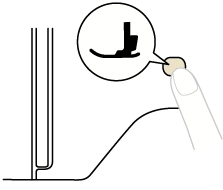


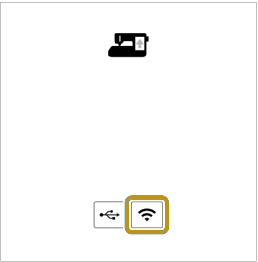
Touch
 .
.
Touch [Load] to update the machine.
Do not turn off the machine during the update.
- When updating is finished, the completion message [Update complete.] appears.
If there are changes or additions to functions, manuals available on the machine may be updated.
Turn the machine off and on again.
Follow instructions displayed on the screen.
Go to the Settings and confirm that the updated version number is displayed.