
Character Pattern Edit Functions
Character Input Screen
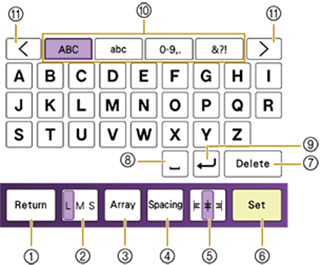
Character Pattern Editing Screen
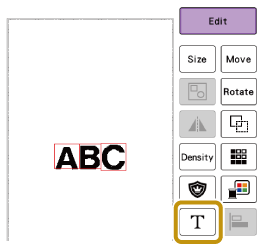
Touch [Edit], and then touch  .
.

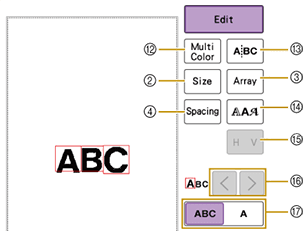
- Return key
Return to the previous screen.
- Size key
Change the size of the character patterns.
When editing from the character pattern editing screen, fine adjustments are possible.
- Array key
Change the configuration of the character patterns.
- To arrange the character patterns on an arc, touch
 ,
,  ,
,  or
or  .
. : Make the arc flatter.
 : Make the arc rounder.
 - To arrange the character patterns on an incline, touch
 .
. : Change the incline counterclockwise.
 : Change the incline clockwise.
  : Reset the layout.
- To arrange the character patterns on an arc, touch
- Character spacing key
Change the spacing of the character patterns.
 : Increase the character spacing.
 : Decrease the character spacing.
 : Reset the spacing.
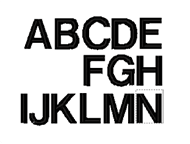
- Alignment key
Switch alignment. This function is available when multiple lines of characters are input.


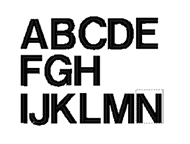
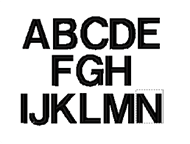
- Set key
Apply the character pattern editing.
- Delete key
Delete the character.
- Space key
Enter a space.
- Line feed key
Make a new line.
- Category keys
Select the category of character.
- Category Page key
Touch
 or
or  to move through the category selection screen pages one at a time.
 - Multi color key
Touch this key when you want to change the thread color, character by character in character embroidery. Since the machine stops at the end of each character, the upper thread can be changed as you embroider.
- Separate key
Separate the continuous character patterns to adjust the spacing or edit separately afterwards.
 : Select where the pattern is to be separated.
 : Separate the pattern. A separated character pattern cannot be combined again.
- Font Type key
Change the font of the characters.
Depending on the font that was selected, it may not be possible to change the font.- To change the font of one character, touch
 to display
 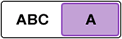 and then select the character. The font of the selected character is changed.
- To change the font of one character, touch
- Vertical/horizontal text key
Touch this key to switch between text written vertically and horizontally.
(Japanese font only)
- Character selection keys
Move the cursor and select a character.
- Select one/all key
Select to edit all characters or one character.
- : Edit all characters.
- : Edit one character.
- To change the size of one character, touch to display and then select the character. The size of the selected character is changed.