
Operations Available with a Wireless Network Connection
This machine supports a wireless network connection. The following useful operations will be available if the machine is connected to a wireless network.
For Updating
Directly download the update file to the machine.
Update Procedure Using Wireless LAN Connection
Windows Application

Name | Function |
|---|---|
Design Database Transfer | Wirelessly transfer an embroidery pattern from your computer to the machine. This is a free application for use on a Windows based computer and can be downloaded to your computer from the following URL. Settings must be specified in Design Database Transfer. For more information about the settings, install the application and refer to its built-in Instruction Manual. Retrieve the embroidery pattern on the machine after transferring from your computer. |
Palette version 11 or later (Sold separately) | Wirelessly transfer to the machine an embroidery pattern edited with embroidery editing software (Palette version 11 or later) on a computer. Retrieve the embroidery pattern on the machine after transferring from your computer. Retrieving Embroidery Patterns Also, transfer to Palette an embroidery pattern edited on the machine. Settings must be specified in Palette. For more information, refer to the manual for Palette. Save the embroidery pattern to the wireless function pocket to transfer to Palette. |
IQ Intuition Monitoring App (Mobile Application)
With the IQ Intuition Monitoring App (Mobile Application) installed on your mobile device and the machine and mobile device connected to the same wireless network, you can check the operating status of the machine. In addition, you can receive notifications when the machine stops.
Installing the App
Use your mobile device to scan the appropriate QR code below to visit Google Play or the App Store.
Install [IQ Intuition Monitoring].

IQ Intuition Monitoring
- To download and install the app, you can also search for [IQ Intuition Monitoring] in Google Play or the App Store.
- Visit the following web site for support information on the app.
( https://babylock.com/machine-support-and-updates)


Monitoring
The app will be updated from time to time. The following descriptions may differ from the actual screens and operations.
Connect the machine to your wireless network.
Confirm that your mobile device and your machine are connected to the same network.
Tap the icon for [IQ Intuition Monitoring] on the mobile device to start the app.
Follow the instructions that appear in the app to connect the app to your machine.
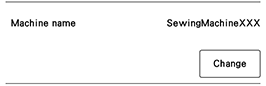
Select the name that appears beside [Machine name] in the settings screen on your machine.
- The machine can now be monitored.