
Pattern Edit Functions
After selecting a pattern, you can edit the pattern by touching [Edit].
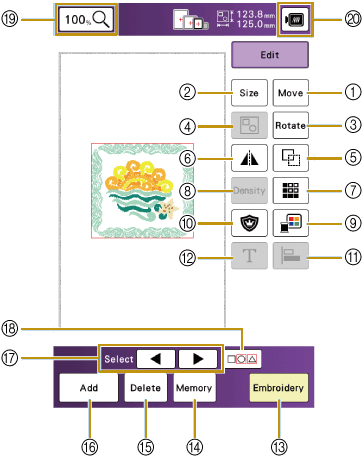
- Move key
- Size key
- Rotate key
- Group key
Group selected multiple patterns.
- Duplicate key
- Horizontal mirror image key
Change the pattern to a horizontal mirror image.
- Border key
- Density key
Allows the thread density to change for some Alphabet characters and frame patterns.
Other patterns' density can be modified after the pattern size is changed.
- Thread palette key
Change the thread color.
- Appliqué key
Create an appliqué outline of the pattern.
- Alignment key
Touch this key to arrange multiple patterns on a line.
- Letter Edit key
Edit character patterns.
- Embroidery key
Proceed to the embroidery screen.
- Memory key
Save a pattern in the machine’s memory or USB media. The pattern can also be transferred to a computer via a wireless network connection.
- Delete key
Delete the selected pattern (the pattern outlined by the red box).
- Add key
Add another pattern to the editing screen.
- Pattern select key
Select the pattern to edit when there are multiple patterns.
- Multiple selection key
Make multiple patterns to be selected at the same time.
- Magnify keys
Select the percent of magnification. You can select from 100%, 125%, 150%, 200%, 250% and 300%.
- Image key
Preview the embroidered image.